End User - 3CX - Register RO-SIP Trunk in 3CX (V20)

Modified on Tue, 20 Jan at 4:49 PM


RingOffice SIP Trunk Setup for 3CX Phone System (Version 20)

[3CX Admin Support]


Overview

To make and receive calls in 3CX, you must add a SIP Trunk so 3CX can connect to the PSTN. Your provider supplies a main trunk number and one or more DIDs. You route each DID to a user or a system destination like an IVR, ring group, or queue.


Purpose

Add and register a RingOffice SIP Trunk in 3CX Version 20. Add DIDs. Route inbound calls. Create outbound rules.


Scope

Includes

  • Add a SIP Trunk in 3CX
  • Add or import DID numbers
  • Route DIDs to users and system destinations
  • Create outbound rules
  • Optional SMS setup if your service includes it

Excludes

  • Provider-side provisioning in RingOffice or carrier portals
  • Advanced tuning beyond the 3CX manual workflow


Prerequisites

  • Active RingOffice SIP Trunk account
  • Register-based details, username and password, or IP-based authorization if used
  • Main trunk number and DID list
  • On-premise or self-hosted 3CX: configured firewall and NAT. 3CX Firewall Checker must pass


Step 1. Add the RingOffice SIP Trunk in 3CX

  1. Sign in to the 3CX Admin Console.
  2. Go to Admin, then Voice & Chat.
  3. Click + Add trunk.
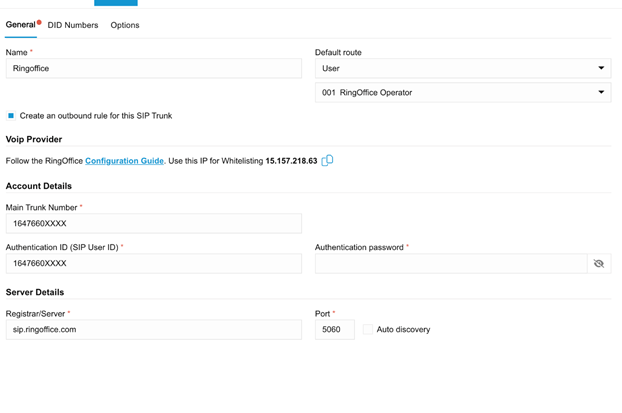
  4. Enter a Trunk name. Example: RingOffice.
  5. Set the Default Route. This is where calls go when a DID is not assigned.
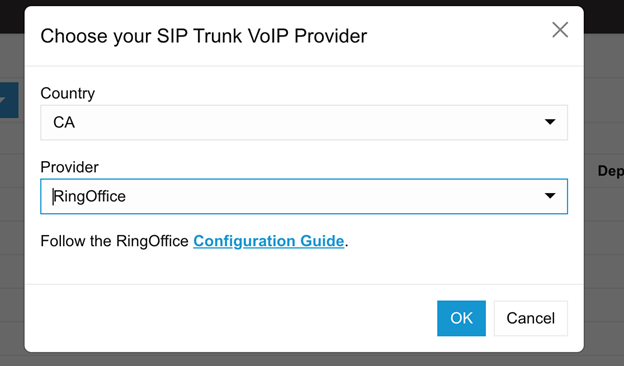
  6. In SIP Trunk Details, set Country to CA.
  7. In the Trunk drop-down, select RingOffice.

  1. Configure Authentication. Select Register based.
  2. Enter the required trunk details. Add the authentication credentials provided by RingOffice.
  3. Enter your Main Trunk Number.
  4. Open the DID Numbers tab. Click + Add. Enter each DID number you received from RingOffice.
  5. Go to Options, then Limit to. Choose System wide or the required Department.
  6. Click Save.
  7. Confirm trunk status.
    • Green means registered
     • Red means not registered


Step 2. Route each DID to the right destination

Route DIDs to system destinations

  1. Open the target destination. Example: IVR, ring group, queue, or digital receptionist.
  2. Go to Call handling.
  3. Find Assigned DID Number(s).
  4. Select the DID for that destination. Save.

Route DIDs to a user or extension

  1. Go to Users.
  2. Select the user.
  3. In General, find Assigned DID Number(s).
  4. Select the DID. Save.


Step 3. Create an outbound rule

Outbound rules decide which trunk 3CX uses for outbound calls.

  1. Create an outbound rule that routes calls to the RingOffice trunk.
  2. Set rule conditions based on your dial plan. Use what fits your environment.
  • Prefix, for example 9
  • Number length, for example 10 or 11 digits
  • Department or group membership
  1. Save the rule.
  2. Place a test call from an extension.

Optional. SMS setup

If your RingOffice service supports SMS in 3CX, enable and test SMS based on your RingOffice service details and the 3CX workflow for SMS on trunks. If you do not have SMS enabled on the service, skip this section.

Caller ID behavior

  • Default outbound caller ID uses the main trunk number.
  • Assign a DID to a user if you want that user to present a specific caller ID.


Troubleshooting

Trunk shows Red or Not Registered

  • Confirm the trunk is set to Register based.
  • Recheck the username and password from RingOffice.
  • If you use IP-based authorization, confirm the allowed public IP is correct. Update it if the IP changed.

Calls fail on on-premise or self-hosted

  • Run the 3CX Firewall Checker and fix any failures.
  • Confirm NAT and firewall rules match 3CX requirements.
  • Re-test inbound and outbound calls after changes.


FAQs

Q. What happens if a DID is not assigned?
 A. 3CX sends the call to the trunk Default Route.

Q. What caller ID is used for outbound calls by default?
 A. 3CX uses the main trunk number unless you assign a DID to the user or extension.

Glossary

SIP Trunk, VoIP Provider
 Service that connects 3CX to the PSTN.

DID, Direct Inward Dialing

A number you route to a destination inside 3CX.

E.164

International number format using + and country code.

Additional resources

3CX Manual, SIP Trunks
https://www.3cx.com/docs/manual/sip-trunks/


Was this article helpful?

That’s Great!

Thank you for your feedback

Sorry! We couldn't be helpful

Thank you for your feedback

Let us know how can we improve this article!

Select at least one of the reasons
CAPTCHA verification is required.

Feedback sent

We appreciate your effort and will try to fix the article